Let an AI Agent Run Twitter Exporter for You (WebMCP)
Since version 0.8.67, Twitter Exporter exposes its export tasks as WebMCP tools. A coding agent that is connected to your browser, such as Claude Code or pi, can then create an export, wait for it, and read the records, instead of you clicking through the Download Manager and handing it a CSV.
A request like this becomes one prompt:
Export the last few hundred tweets from @XDevelopers with Twitter Exporter, then tell me which API changes they announced this year.
This is experimental. WebMCP is still behind a flag in Chrome and does not exist in Firefox or Safari. The setup below was tested with Chrome 157 and chrome-devtools-mcp 1.13.0, and the flag and option names may change. If the browser has no WebMCP support, the extension works exactly as before.
How the pieces fit together#
Three things have to be in place:
- Chrome has WebMCP turned on, so the extension’s Download Manager page can register its tools.
- Chrome DevTools MCP connects your agent to that Chrome and passes the tools through.
- Your agent (Claude Code, pi, or any other MCP client) has Chrome DevTools MCP configured with two extra options.
The tools live on the Download Manager page, so that tab has to stay open while the agent works.
Step 1: Set up Chrome#
- Update Twitter Exporter to 0.8.67 or later. If your browser has not picked up the update yet, see why your extension hasn’t updated.
- Open
chrome://flags/#enable-webmcp-testing, set it to Enabled, and relaunch Chrome. - Open
chrome://inspect/#remote-debuggingand allow remote debugging. This lets Chrome DevTools MCP attach to the Chrome you are already using, with your X login and your extensions. - Open the Download Manager: click the Twitter Exporter icon on any page that is not x.com.
To check that the tools are registered, open DevTools on the Download Manager page and go to Application → WebMCP. You should see eight tools under “Available tools”.
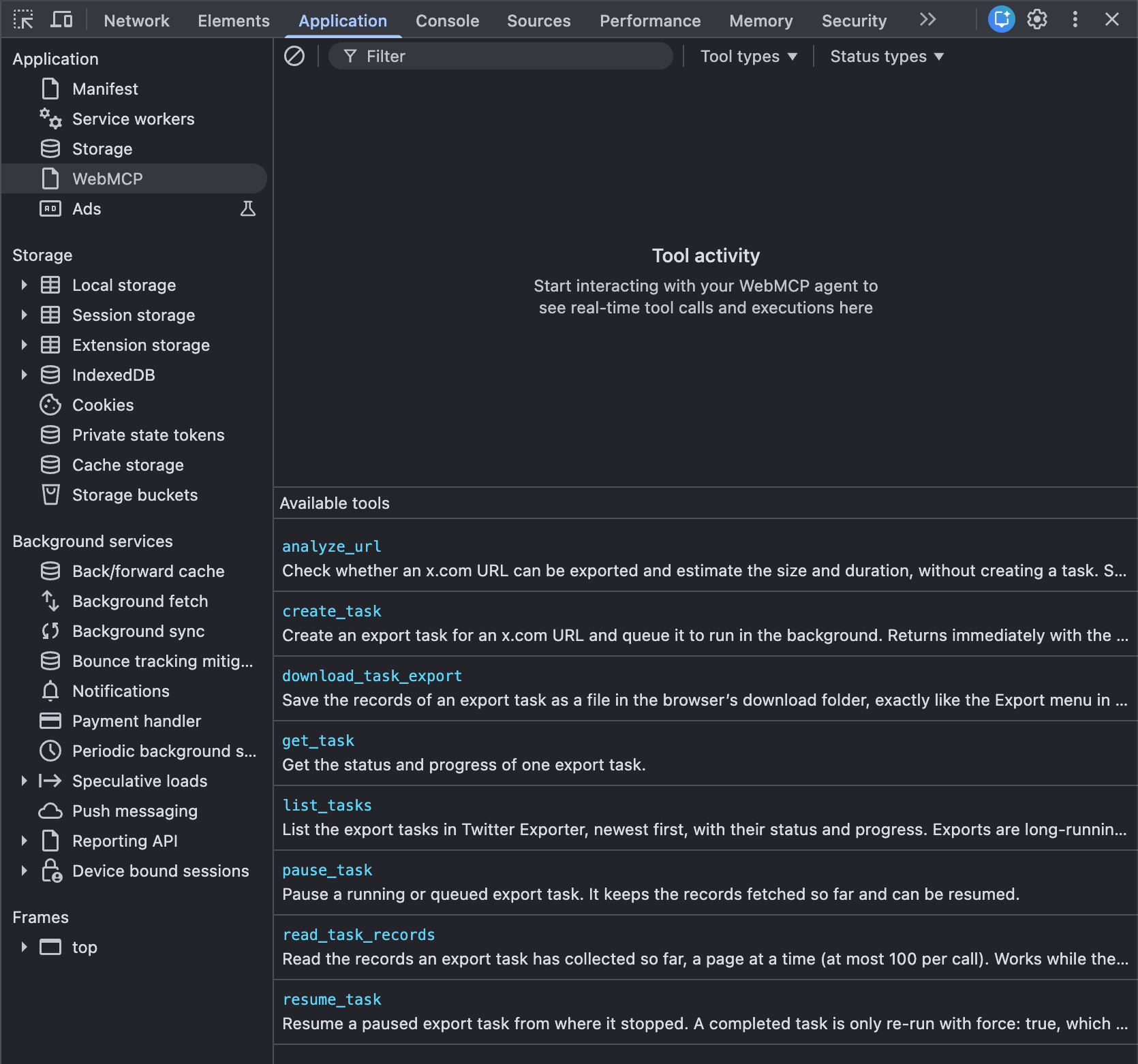
If the WebMCP entry is missing, the flag is not active. If it is there but the list is empty, the extension is older than 0.8.67.
Step 2: Configure your agent#
Chrome DevTools MCP needs three options:
| Option | Why |
|---|---|
--autoConnect |
Attach to your running Chrome instead of starting an empty one |
--categoryExtensions |
Make extension pages visible; they are hidden by default |
--categoryExperimentalWebmcp |
Add the tools that list and call WebMCP tools |
Leaving out either of the last two is the most common mistake. Without --categoryExtensions the agent cannot see the Download Manager page at all. Without --categoryExperimentalWebmcp it sees the page but has no way to call the tools.
Claude Code#
claude mcp add chrome-devtools -- npx -y chrome-devtools-mcp@latest --autoConnect --categoryExtensions --categoryExperimentalWebmcpRestart Claude Code afterwards so it loads the new tools.
pi#
pi reads MCP servers through pi-mcp-adapter. Add the server to ~/.config/mcp/mcp.json:
{
  "mcpServers": {
    "chrome-devtools": {
      "command": "npx",
      "args": [
        "-y",
        "chrome-devtools-mcp@latest",
        "--autoConnect",
        "--categoryExtensions",
        "--categoryExperimentalWebmcp"
      ]
    }
  }
}
Restart pi. It caches the tool list of each server, so if it still shows the old tools after you change the options, delete ~/.pi/agent/mcp-cache.json and start it again.
Other MCP clients#
Any client that can run a stdio MCP server works the same way: run npx -y chrome-devtools-mcp@latest with the three options above.
Step 3: Try it#
With the Download Manager tab open, ask your agent:
List the WebMCP tools on the Twitter Exporter page.
It should find the page under “Extension Pages” and report these tools:
| Tool | What it does |
|---|---|
list_tasks |
Lists export tasks with status and progress, a page at a time |
get_task |
Status, progress and available export formats of one task |
analyze_url |
Checks whether an x.com URL can be exported and estimates size and time |
create_task |
Creates an export task and queues it; returns immediately |
pause_task |
Pauses a running or queued task |
resume_task |
Resumes a paused task |
read_task_records |
Reads collected records, up to 100 per call, also while the task runs |
download_task_export |
Saves the CSV or ZIP to your downloads folder, like the Export menu does |
Then give it real work:
Export the followers of @XDevelopers with Twitter Exporter and tell me how many of them are verified.
Check my export tasks. Which ones are paused, and why?
Export my bookmarks and group them by topic.
Exports are rate-limited by X and can take minutes or hours. create_task returns right away, and the agent follows the task with get_task. For a long export, tell the agent to check back later instead of waiting in a loop. Everything the agent does shows up in the Download Manager as it happens, and you can pause a task there at any time.
There is deliberately no tool for deleting tasks. Deleting stays a click in the UI.
Plan limits apply to the agent too#
The tools go through the same checks as the UI:
- Free: 1,000 records per task, one active task at a time.
- Basic: 100,000 records per task, three active tasks.
- Pro: no limits, plus media downloads. Media exports, such as a profile’s media tab, need Pro.
When a call runs into a limit, the tool returns an error that names the limit, for example The free plan allows up to 1 active task(s) and 1 already is, so the agent can tell you what happened.
What the agent can see#
Twitter Exporter still runs entirely in your browser and sends nothing to our servers. Connecting an agent changes what leaves your machine in two ways, and both are worth knowing before you start:
- Exported records go to the agent’s model.
read_task_recordsreturns the data of any task in the Download Manager, including exports of your DMs, chats and Grok conversations if you have made any. If the agent uses a hosted model, that text is sent to the model provider. Delete tasks you don’t want an agent to read, or run the agent with a local model. - The agent is attached to your real browser.
--autoConnectgives Chrome DevTools MCP access to every open tab, not only Twitter Exporter. Only use it with agents you trust, and turn remote debugging off again inchrome://inspect/#remote-debuggingwhen you are done.
Tweets are written by strangers, and an agent may treat text inside a tweet as an instruction. The read tools are marked as returning untrusted content, but it is still safer not to let an agent act unattended on exported data.
Troubleshooting#
The agent does not see the Twitter Exporter page. --categoryExtensions is missing, the Download Manager tab is closed, or the agent is attached to a different Chrome. --autoConnect uses stable Chrome by default; add --channel=beta, dev or canary for the others.
The agent sees the page but reports no WebMCP tools. --categoryExperimentalWebmcp is missing, or the Chrome flag is off. Check the Application → WebMCP panel in DevTools first: if the tools are listed there, the problem is in the agent’s configuration.
The agent has no list_webmcp_tools tool after you changed the configuration. Restart the agent. For pi, also delete ~/.pi/agent/mcp-cache.json.
Chrome DevTools MCP cannot connect. Remote debugging is not allowed in chrome://inspect/#remote-debugging, or Chrome is older than version 144, which --autoConnect requires.
create_task fails with “Failed to fetch asset” or “Not logged in”. You are not logged in to x.com in that browser.
A tool call returns an error about the plan. That is a plan limit, not a bug.
Get started#
Install Twitter Exporter from the extension page. The free tier is enough to try the whole setup: one task at a time, up to 1,000 records each.