Why Your Extension Hasn't Updated Yet
You were told a bug was fixed in the new version. You open the extension and it behaves exactly the way it did before. Is the fix not in yet? Did the update fail? Do you need to reinstall something?
There are only a few ways this can happen, and most of them require nothing from you at all. Here’s the order to check things in.
1. Find out which version you actually have#
Two numbers matter: the one your browser reports, and the one the store listing reports.
Your browser’s number is on the extensions page:
| Browser | Address |
|---|---|
| Chrome | chrome://extensions |
| Edge | edge://extensions |
| Firefox | about:addons |
The version sits right under the extension’s name. Then open the extension’s page on its store listing — that number is the source of truth, because it’s what has actually been released to everyone.
If the two match, you are already on the latest version. Updating is not your problem, and no amount of reinstalling will change anything — see the last section.
2. Force an update instead of waiting#
Browsers don’t poll for extension updates continuously. Chrome checks on its own schedule — typically every few hours, plus once at startup — so a release can sit unnoticed for a while. You can skip the wait:
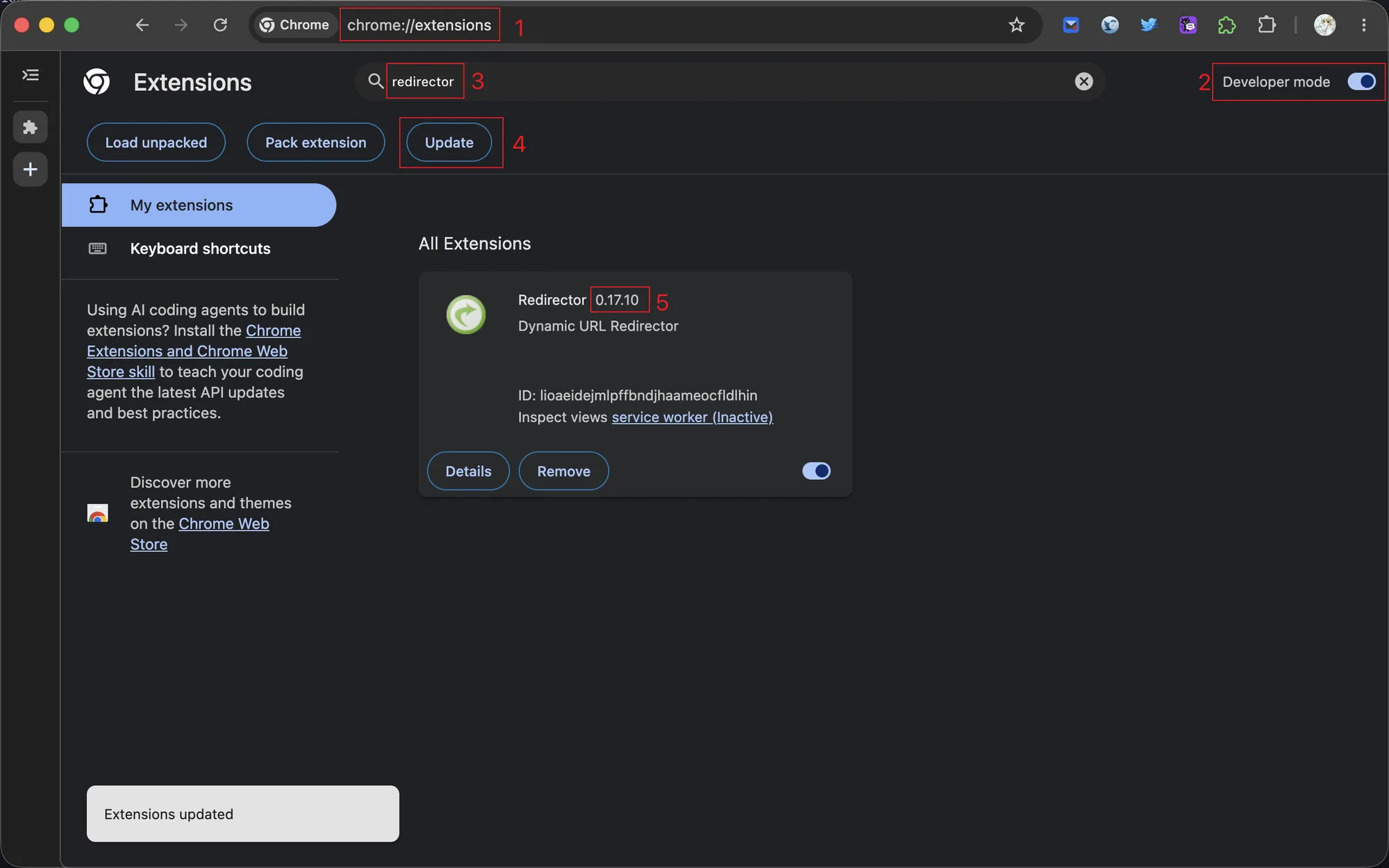
- Go to
chrome://extensions(1) - Turn on Developer mode in the top right (2). The Update button only exists while this is on — this is the step most people have never seen.
- Filter the list by typing the extension’s name (3), so you can read its version without hunting.
- Click Update (4). This re-checks every installed extension, not just the one you filtered to.
- Look at the version number again (5).
A toast appears in the bottom-left corner saying Extensions updated. It only confirms the check ran — it does not mean anything changed. The version number is what tells you.
Edge uses the same page and the same button. On Firefox it’s about:addons → the gear icon → Check for Updates. Safari extensions are part of an app, so they update through the App Store like any other app.
3. The version number didn’t change#
| What’s going on | What to do |
|---|---|
| The store listing still shows the old version | Nothing. New versions go through review before anyone can download them, which takes anywhere from a few hours to several days. Reinstalling won’t help — you’d get the same version back. |
| The extension is disabled | Disabled extensions are skipped entirely. Re-enable it, then force a check. |
| There are two entries with the same name | One of them was installed by hand — usually from a ZIP file. Manual copies never update themselves. Remove that one and keep the store version. |
| You’re on a managed computer | Work or school policy can pin extensions to a fixed version. You can’t override it. |
| You installed it in another browser or profile | Chrome, Edge, and Firefox update independently of each other, and so does every browser profile. Updating one does nothing for the others. |
4. The version changed, but the extension behaves the same#
This one surprises people. The update applies to the extension, but tabs that were already open keep running the copy of the code they loaded when the page first opened. Reload the tab — if the extension works on a specific site, reload that site’s tabs. Restarting the browser clears it up too.
When there is nothing to update#
The most common answer is that you already have the newest version and the release simply hasn’t happened yet. Store review takes as long as it takes, and it’s the same for everyone, including the developer. Reinstalling, restarting, and clicking Update in a loop all change nothing.
If the version number is current and the problem is still there, then you’ve found a new bug rather than a stale install — that’s worth reporting on the support page or in Discord.