X's algorithm doesn't care what language you speak. If a tweet gets enough engagement, it'll show up in your For You feed regardless of whether you can read it. You might follow a few Japanese or Korean accounts for art or tech, and suddenly half your timeline is in a language you don't understand.
There's no built-in setting on X to filter tweets by language. Twitter Filter can do this with a simple rule using the tweet.lang field.
How it works#
Every tweet on X carries a language code assigned by Twitter's language detection — "en" for English, "ja" for Japanese, "zh" for Chinese, "ko" for Korean, and so on. Twitter Filter exposes this as tweet.lang, which you can use in rule expressions.
Keep only English tweets#
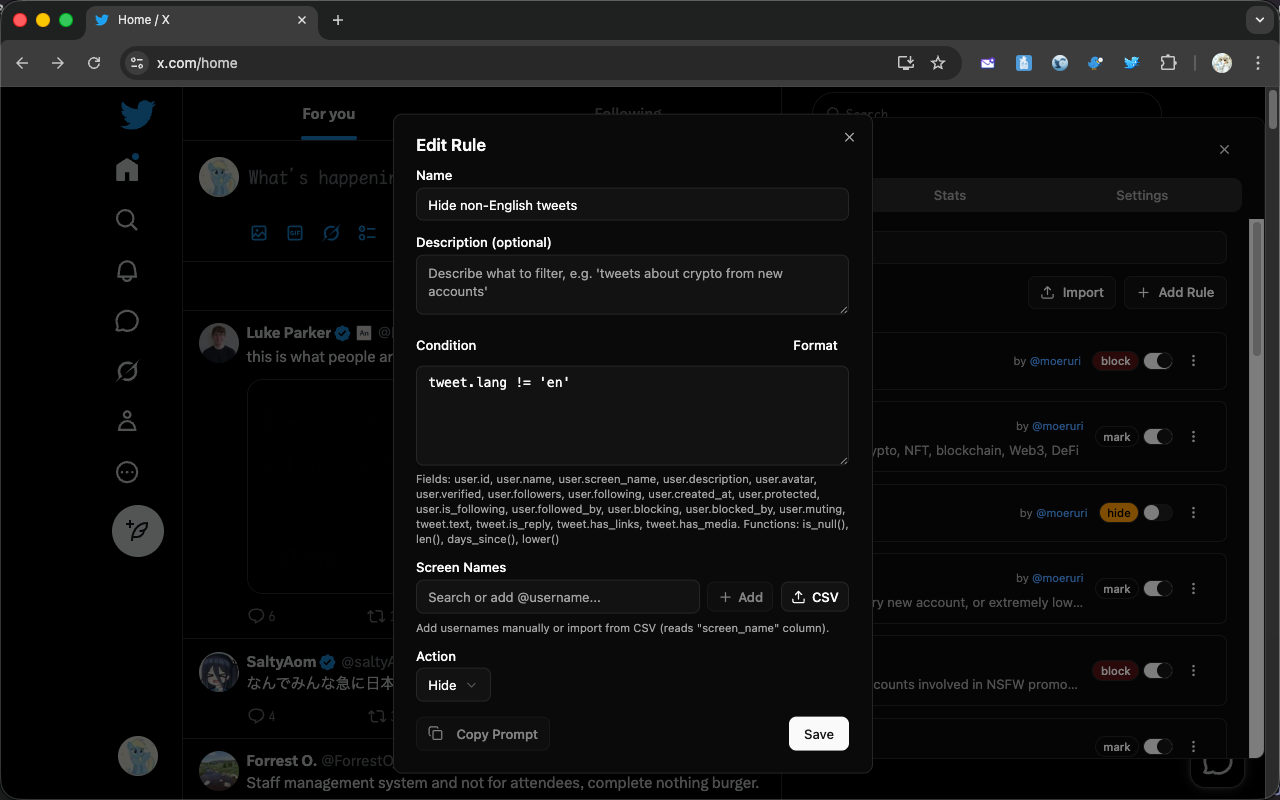
The most common use case. This hides everything that isn't in English:
tweet.lang != 'en'
Import-ready JSON:
{
  "name": "Hide non-English tweets",
  "condition": "tweet.lang != 'en'",
  "action": "hide"
}
Here's what the rule looks like in the Edit Rule dialog:
Keep multiple languages#
If you read English and Spanish, you can keep both and hide the rest:
tweet.lang != 'en' && tweet.lang != 'es'
{
  "name": "Keep English and Spanish only",
  "condition": "tweet.lang != 'en' && tweet.lang != 'es'",
  "action": "hide"
}
Add more && tweet.lang != 'xx' clauses for each language you want to keep.
Hide a specific language#
Maybe you don't want to filter everything — you just want to hide Japanese tweets that keep showing up in recommendations:
tweet.lang == 'ja'
{
  "name": "Hide Japanese tweets",
  "condition": "tweet.lang == 'ja'",
  "action": "hide"
}
Common language codes#
Here are the codes you'll use most often:
| Code | Language |
|---|---|
| en | English |
| ja | Japanese |
| zh | Chinese |
| ko | Korean |
| es | Spanish |
| fr | French |
| de | German |
| pt | Portuguese |
| ar | Arabic |
| ru | Russian |
These are standard ISO 639-1 codes. Twitter also uses "und" for tweets where the language couldn't be detected (usually tweets that are just links or emojis).
How to use#
Copy the JSON block for the rule you want. In Twitter Filter, open the Rules tab and click Import. Paste the JSON and confirm. The rule takes effect on your timeline immediately.
If you're not sure a rule is too aggressive, set "action" to "mark" instead of "hide". Matched tweets will get a yellow border instead of being hidden, so you can check what the rule catches before committing to full hide.
Don't have the extension yet? Install Twitter Filter from the extension page.