📸 Feature Screenshots
Detailed visual guide for each customization option. Click any feature to see it in action.
← Back to Clean Twitter🎨 Branding
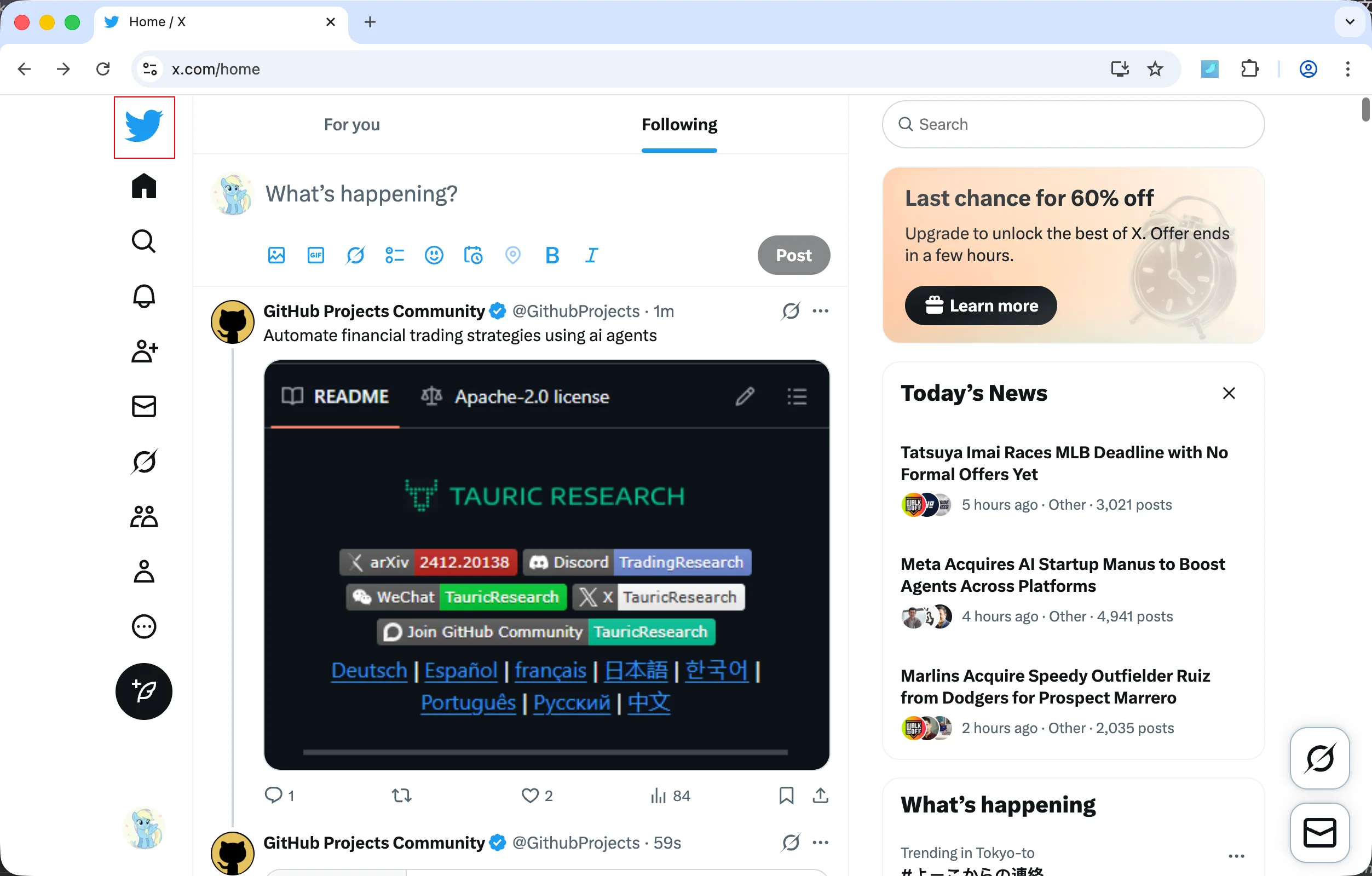
Restore Classic Twitter Logo
Bring back the beloved bird logo instead of the X logo
📐 Layout
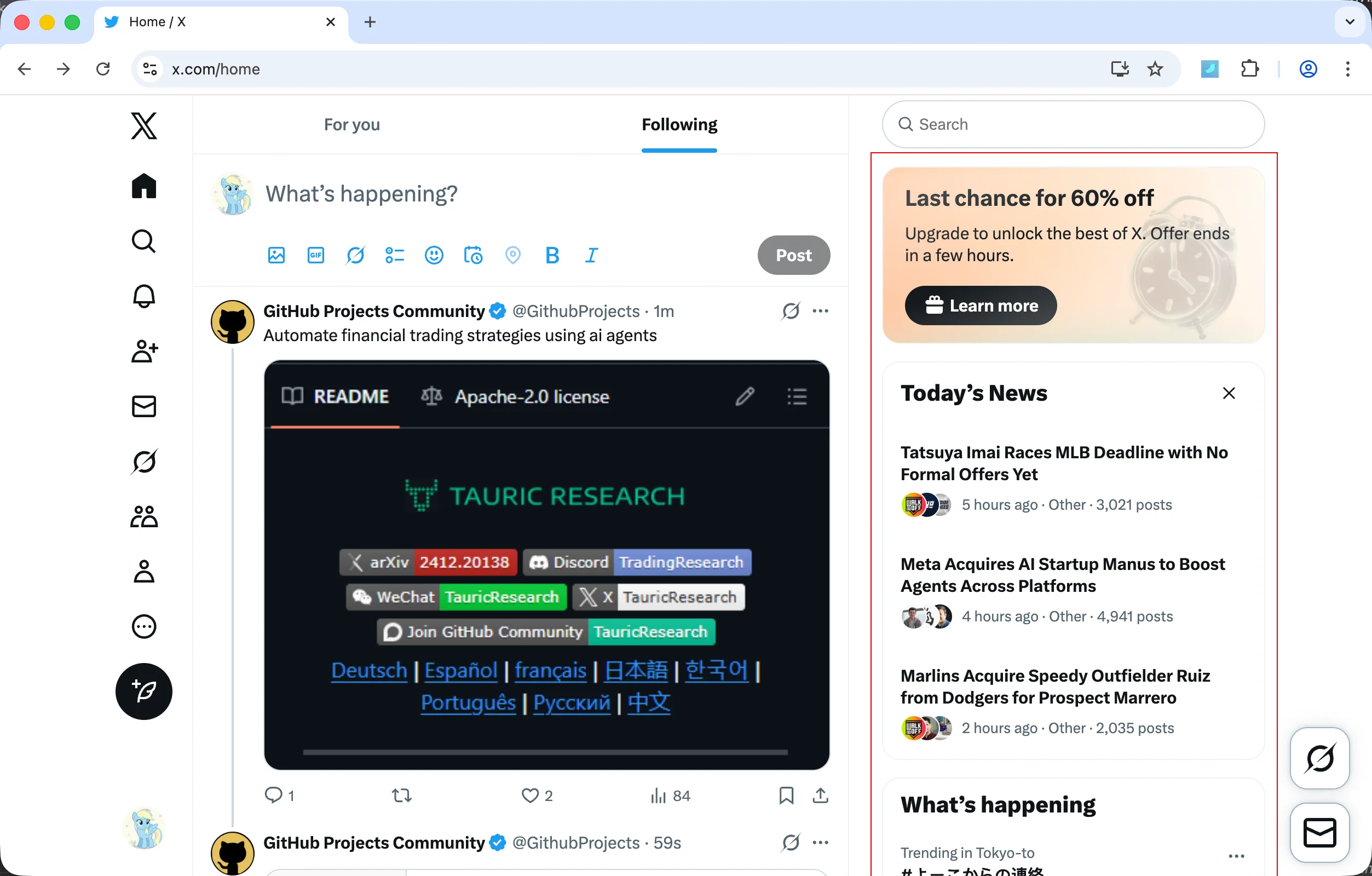
Hide Right Sidebar
Remove the entire right sidebar including trending topics, who to follow, and other suggestions
🧭 Navigation
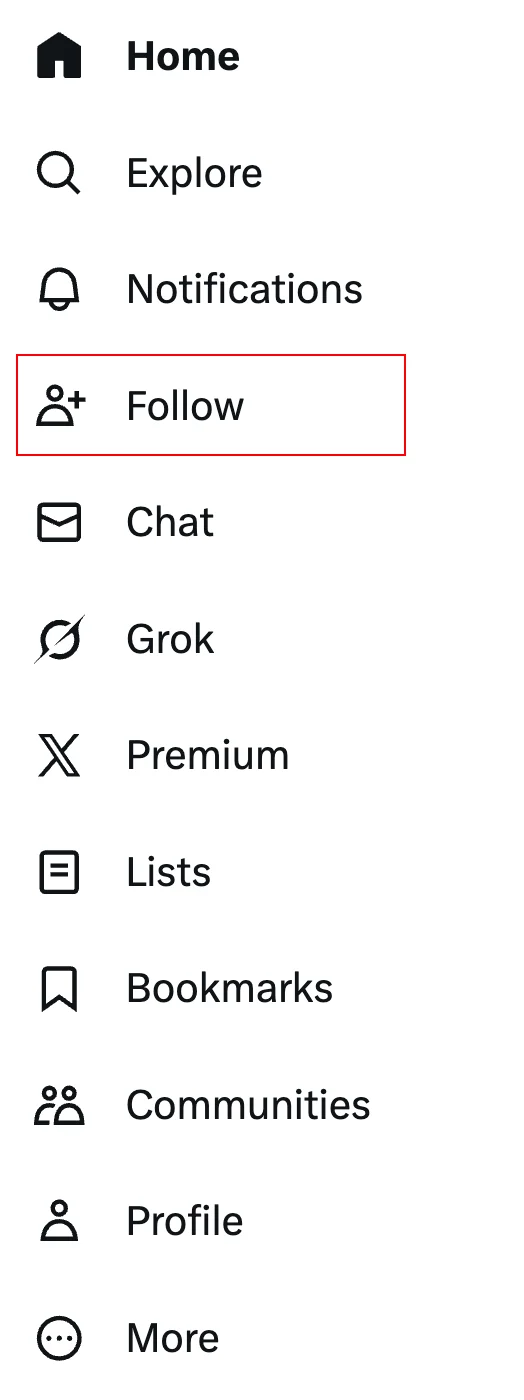
Hide Follow Tab
Remove the Follow/Connect tab from the left navigation menu
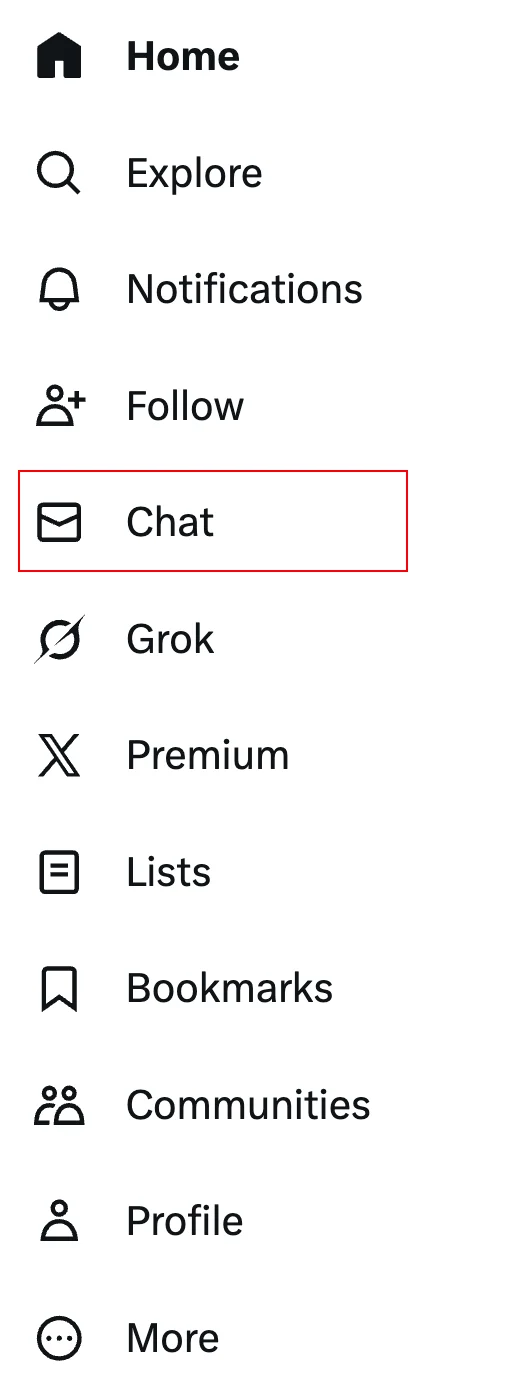
Hide Messages Tab
Remove the Messages/Chat tab from the left navigation menu
Hide Bookmarks Tab
Remove the Bookmarks tab from the left navigation menu
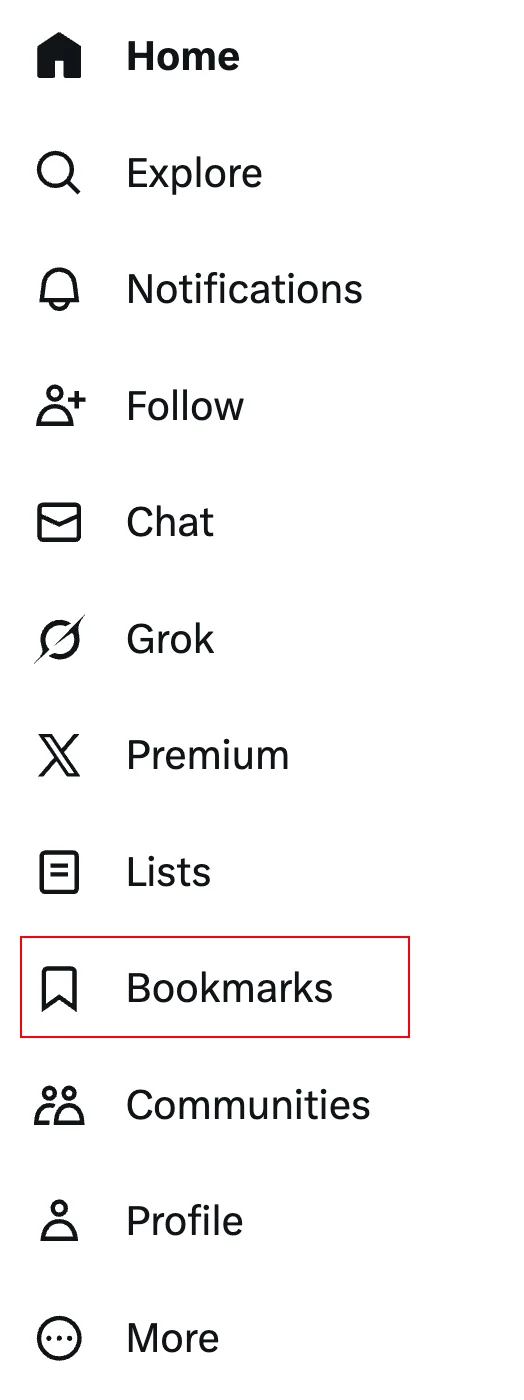
Hide Lists Tab
Remove the Lists tab from the left navigation menu
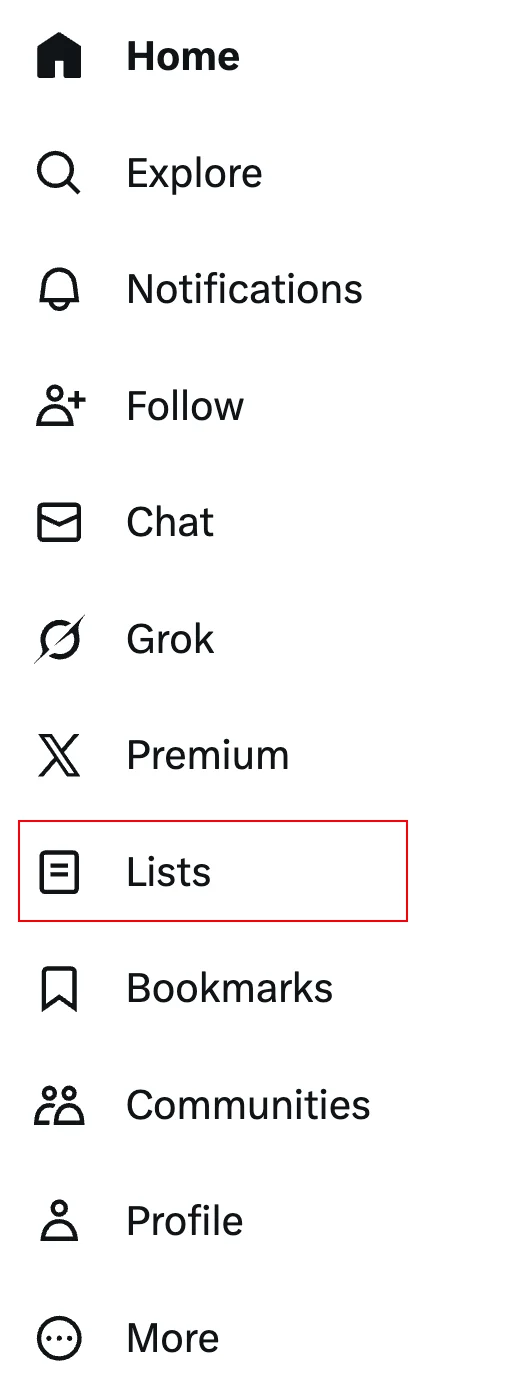
Hide Communities Tab
Remove the Communities tab from the left navigation menu
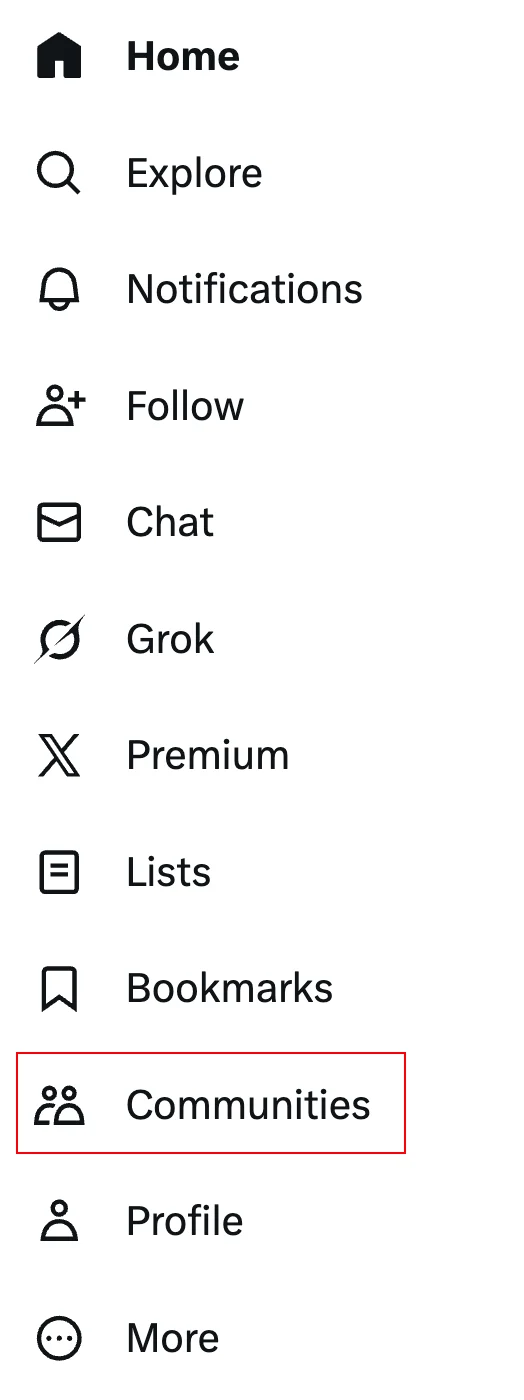
Hide Premium Tab
Remove the X Premium/Twitter Blue tab from the left navigation menu
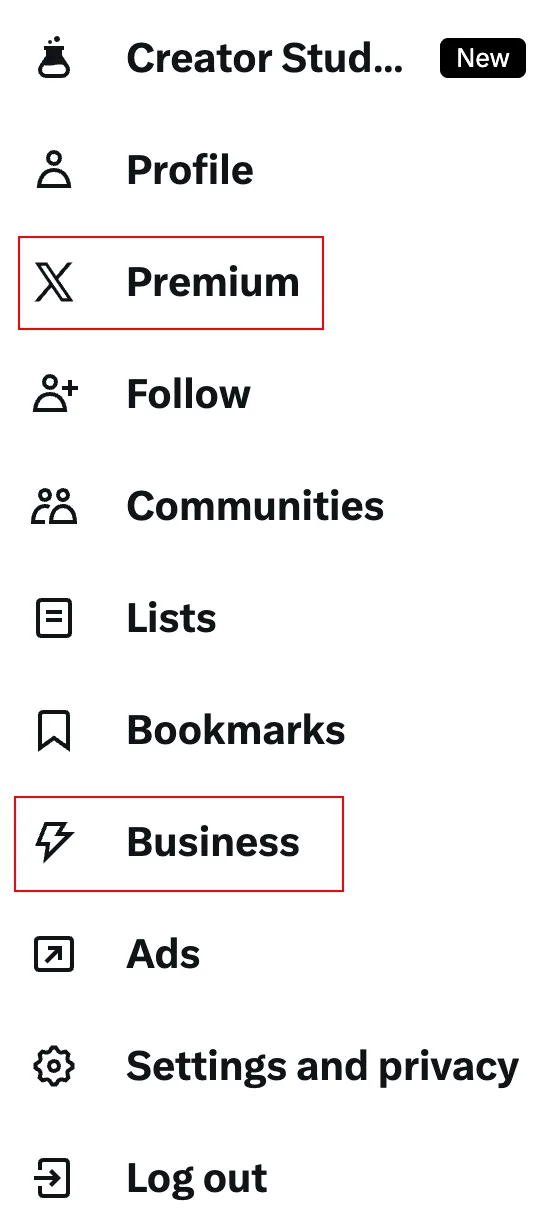
Hide Grok Tab
Remove the Grok AI assistant tab from the left navigation menu
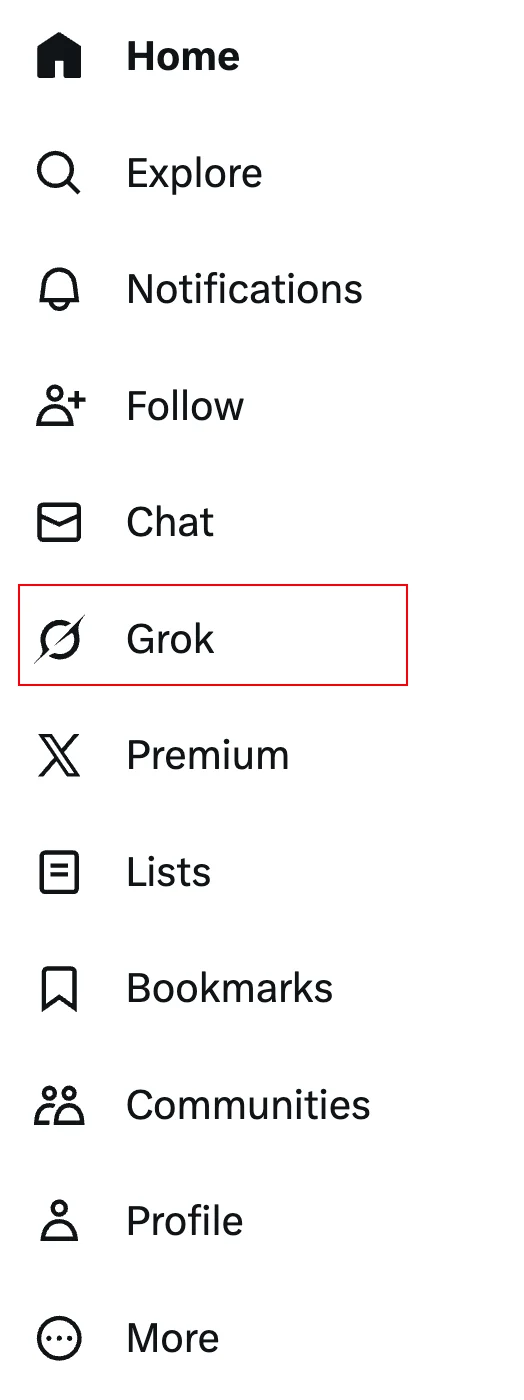
Hide Profile Tab
Remove the Profile tab from the left navigation menu
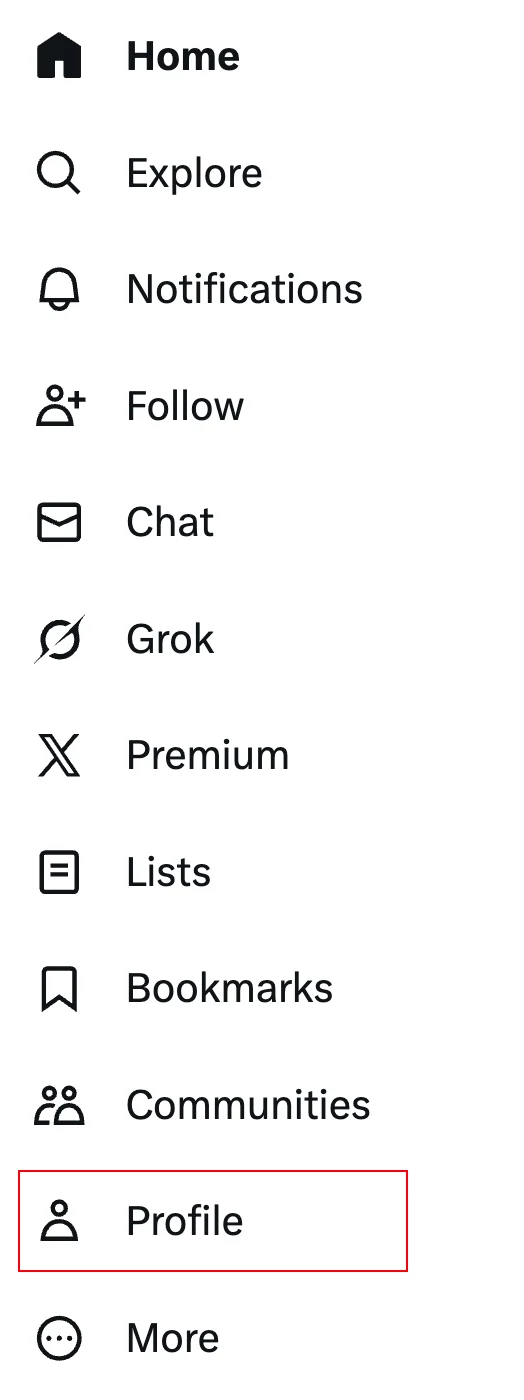
Hide Ads Tab
Remove the Ads/Advertising tab from the left navigation menu
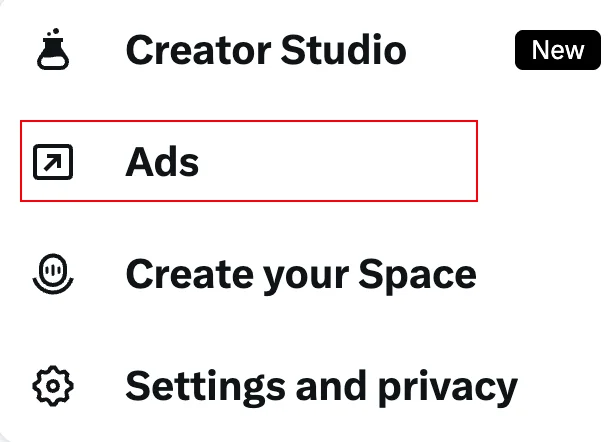
Hide Creator Studio Tab
Remove the Creator Studio tab from the left navigation menu
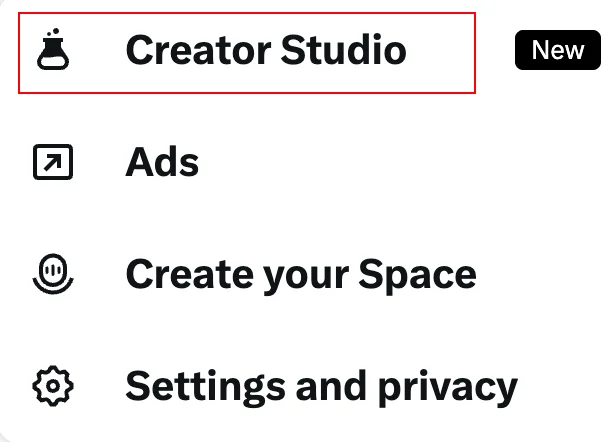
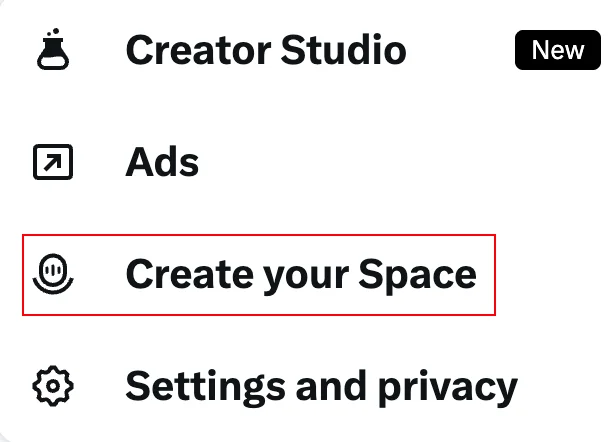
Hide Create Space Tab
Remove the Create Your Space tab from the left navigation menu
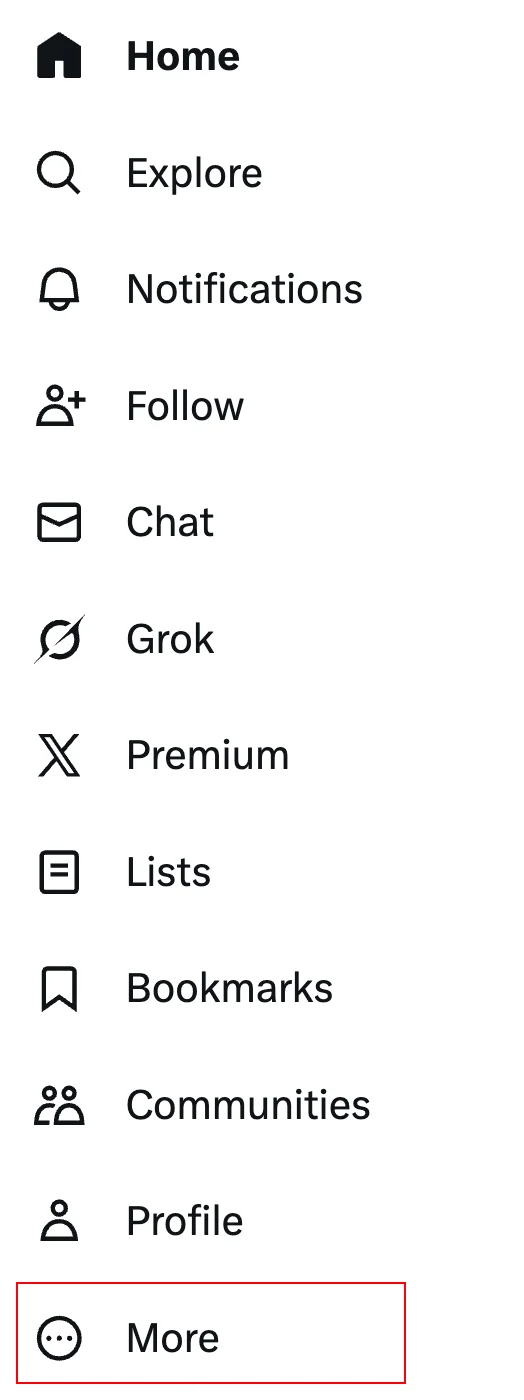
Hide More Menu
Remove the More menu from the left navigation
⚡ Tweet Actions
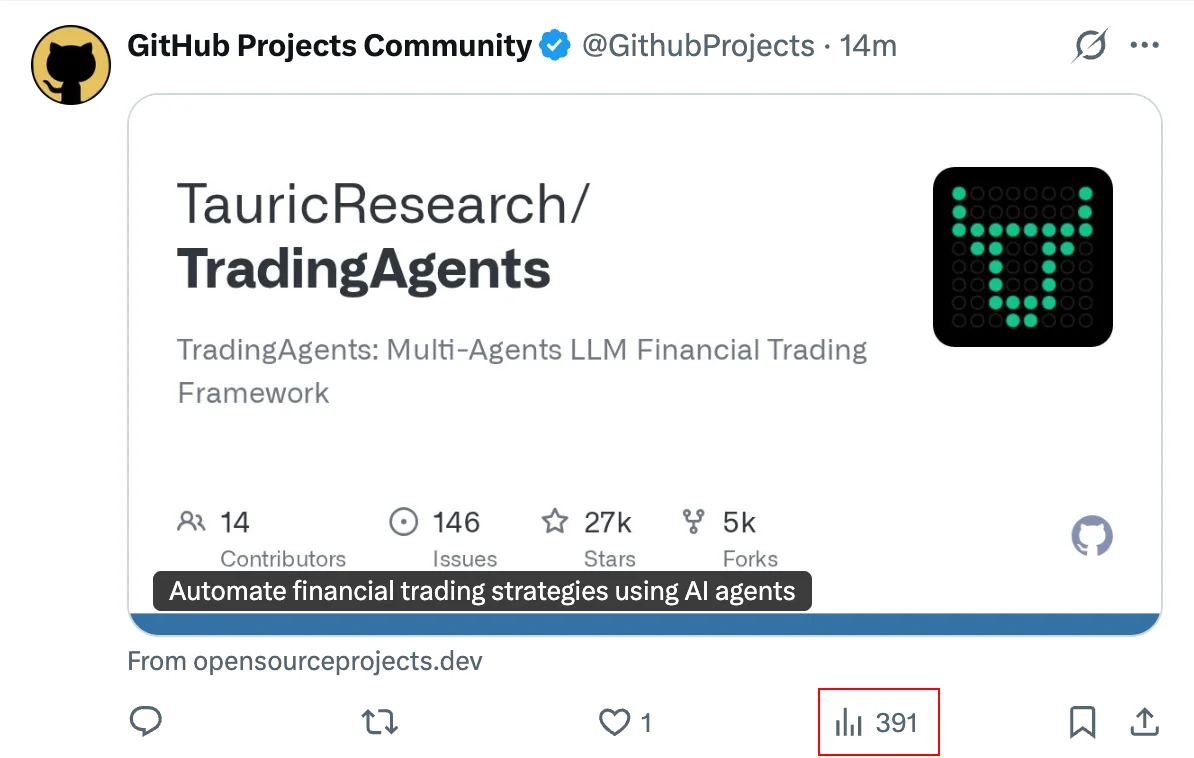
Hide Analytics Button
Remove the analytics/view count button from tweet action buttons
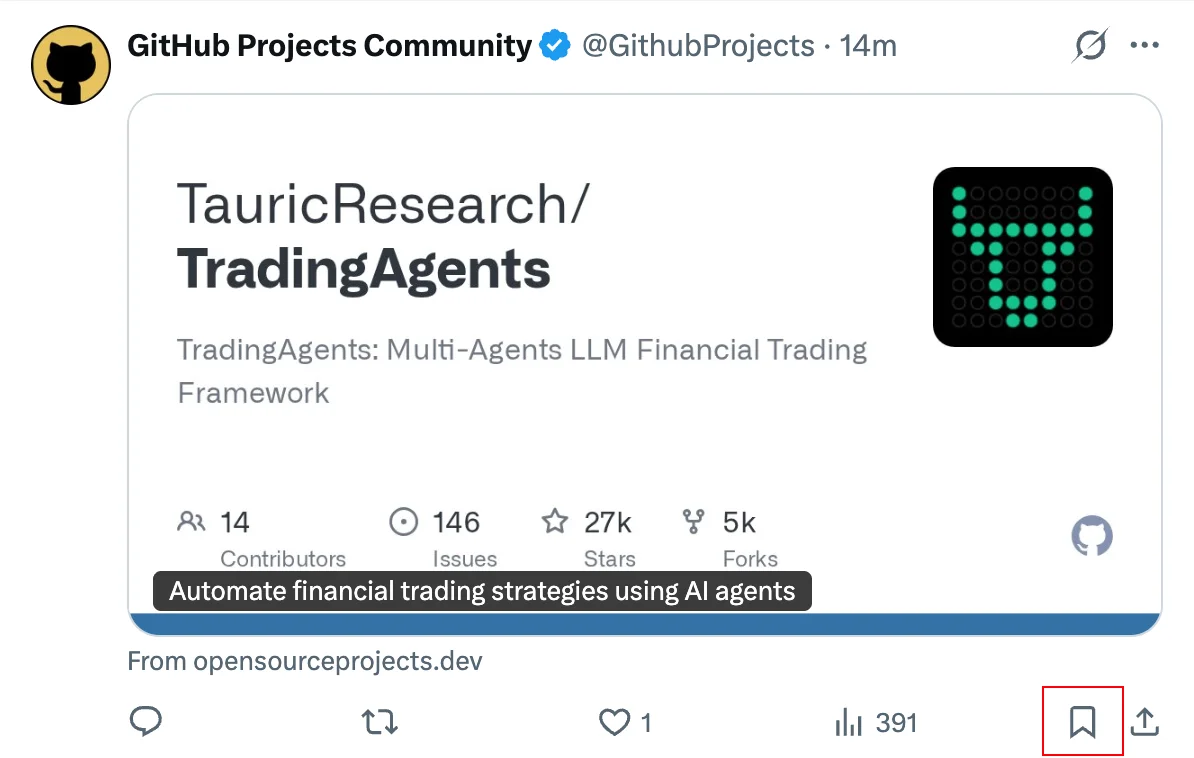
Hide Bookmark Button
Remove the bookmark button from tweet action buttons
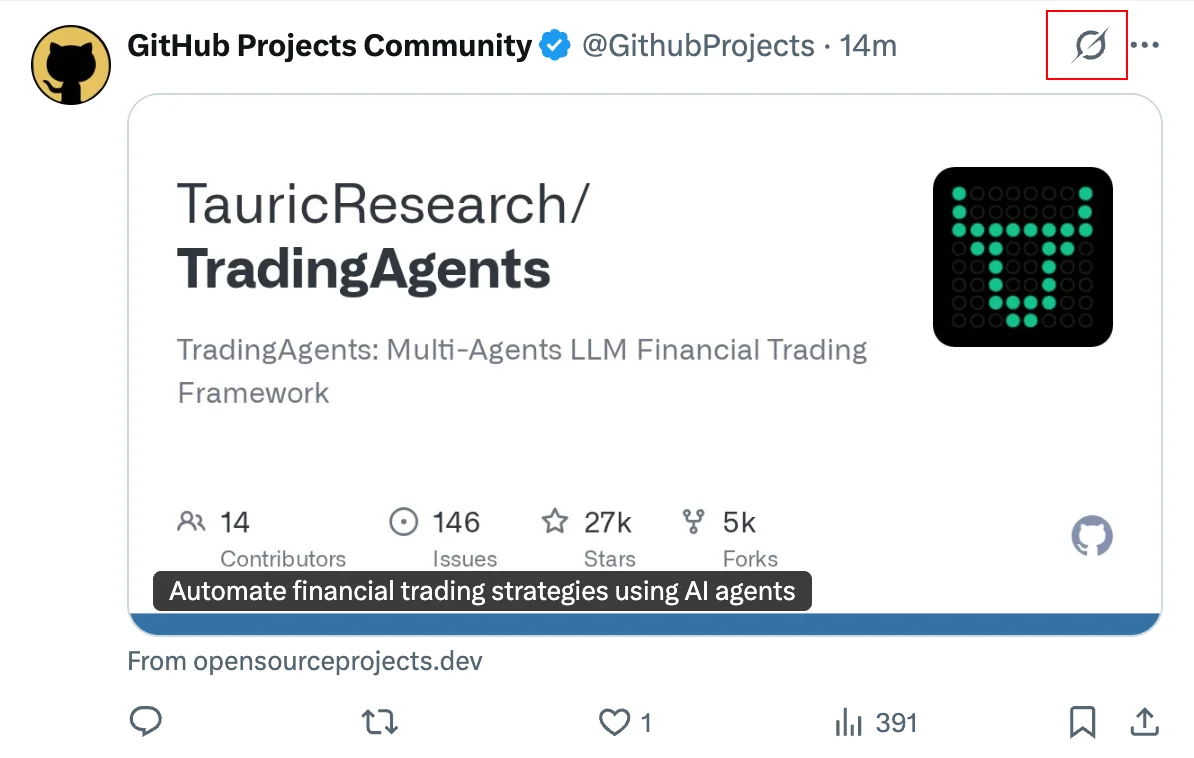
Hide Grok Button
Remove the Grok AI button from tweet action buttons
📄 Content
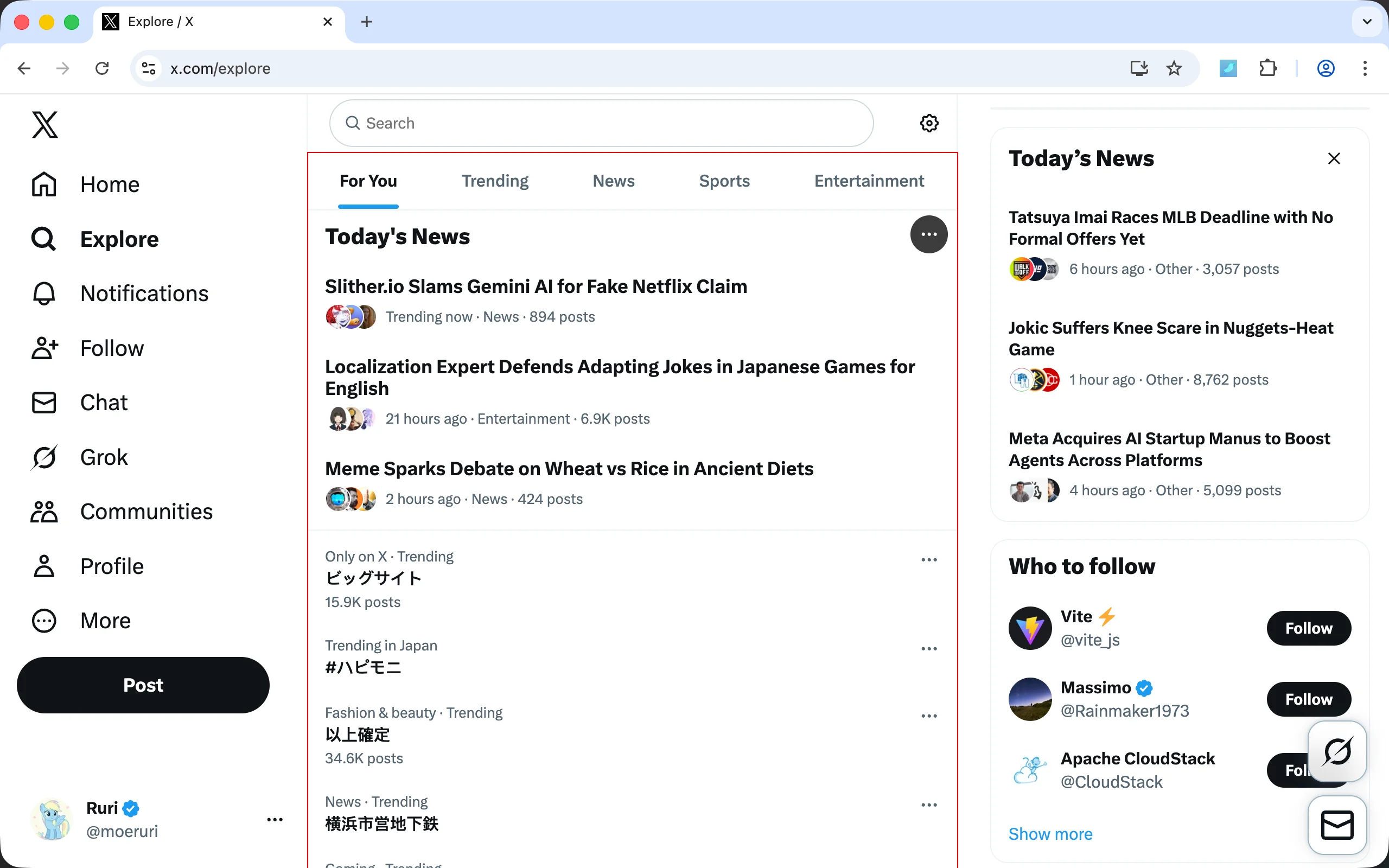
Hide Search Explore
Remove explore content below the search box (trending topics, news, etc.)
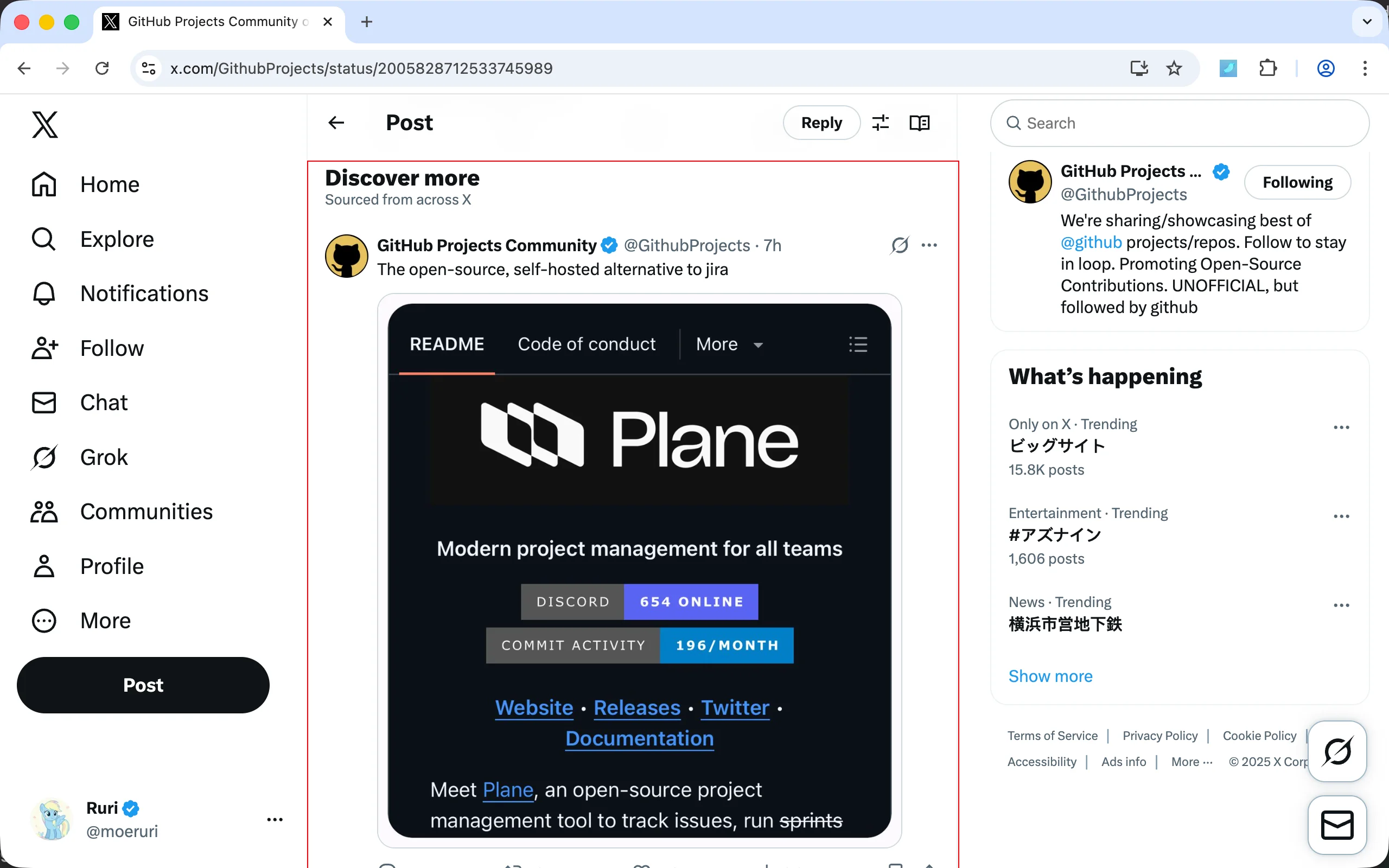
Hide Discover More
Remove "Discover more" recommendation sections
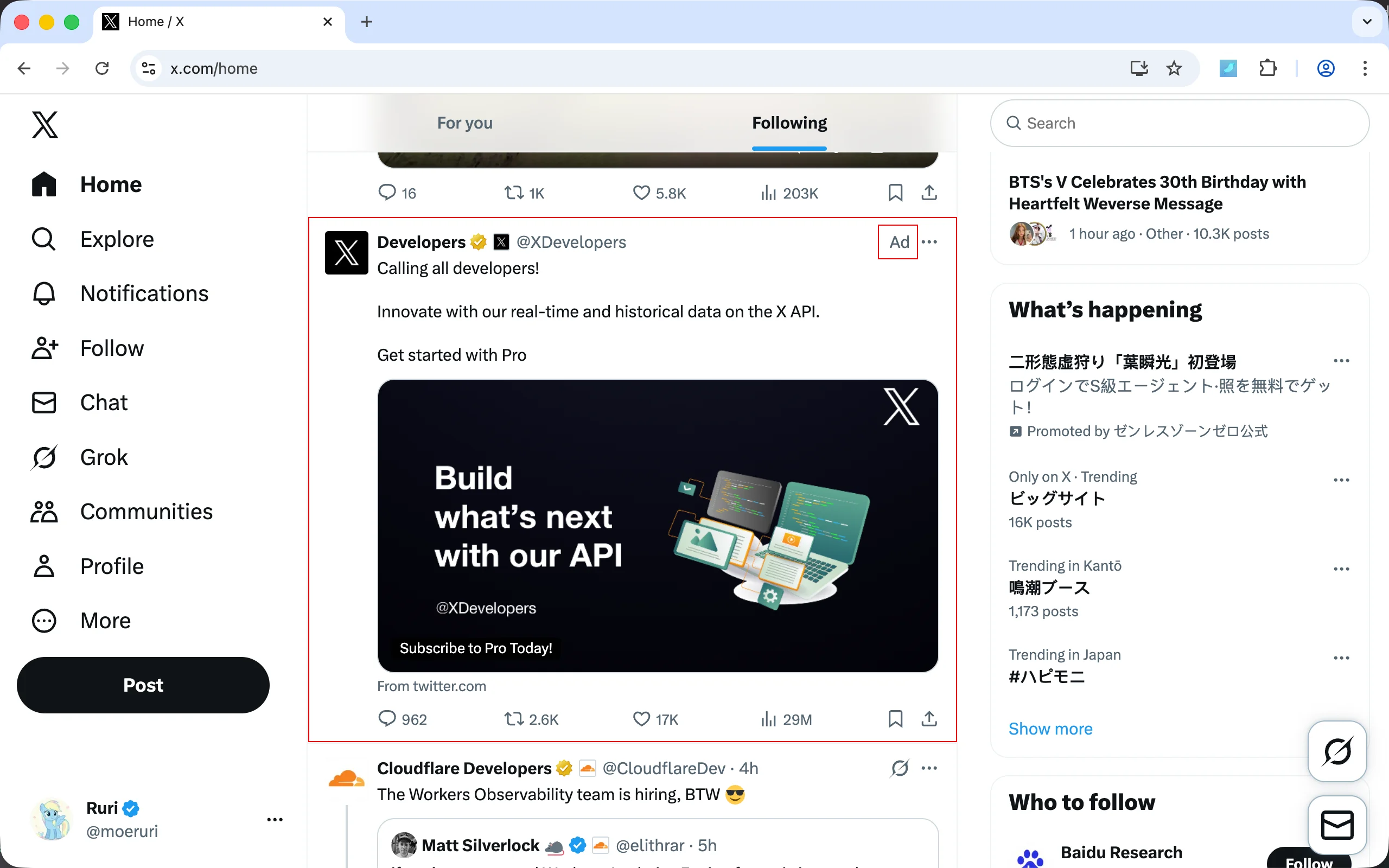
Hide Advertisements
Remove advertisement posts from your timeline
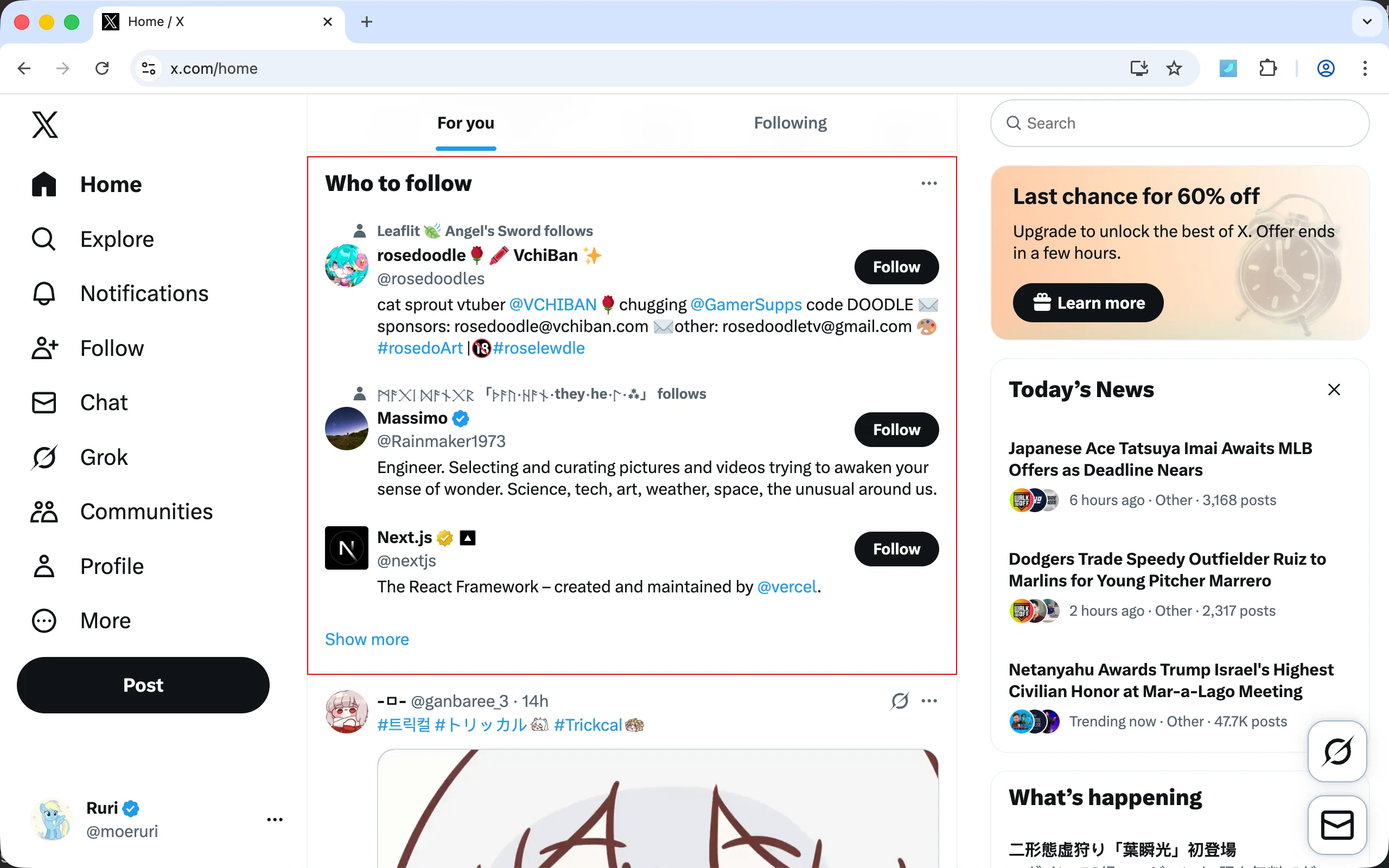
Hide Who to Follow
Remove "Who to follow" suggestion boxes
💡 Tip: All these features can be individually toggled on/off from the extension popup. You can bookmark specific feature links (e.g., https://store.rxliuli.com/extensions/clean-twitter/screenshots#feature-restore-logo) to share or reference them in your extension settings.